Account
setup
Set up your OFFPAD or OFFPAD+ as a security key for your online accounts. You can add up to 100 different accounts.


What you need to connect your
Google account
OPERATING SYSTEMS
Windows 10 or 11
iOS 16 or newer
SUPPORTED BROWSER
Chrome, Safari, Edge or Firefox
ENABLE THE FOLLOWING
Bluetooth & iCloud Keychain (for iOS)
Create passkey
Click here and log in to your Google account if needed. Click on “Create a passkey” -> “Continue”
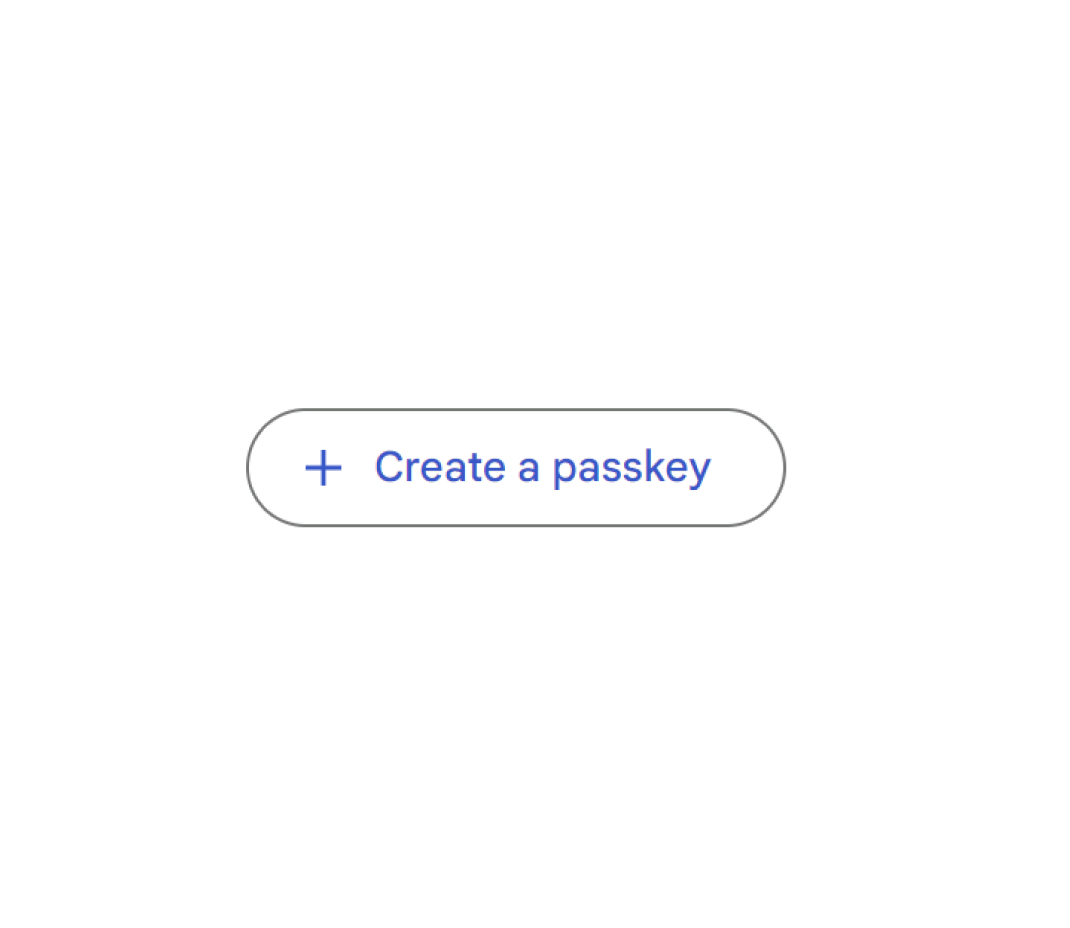
Add OFFPAD / OFFPAD+ as device
Press “Use another device”
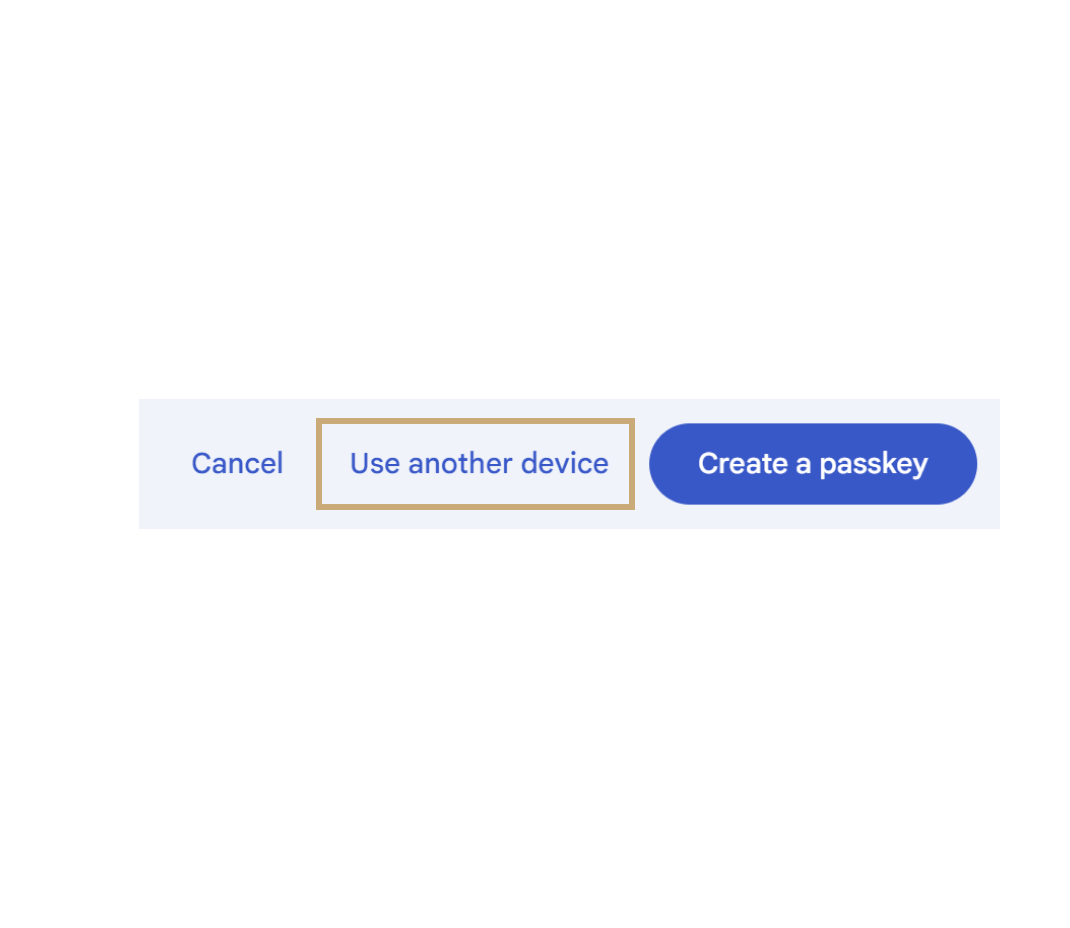
Add OFFPAD / OFFPAD+ as device
Press “Security key”
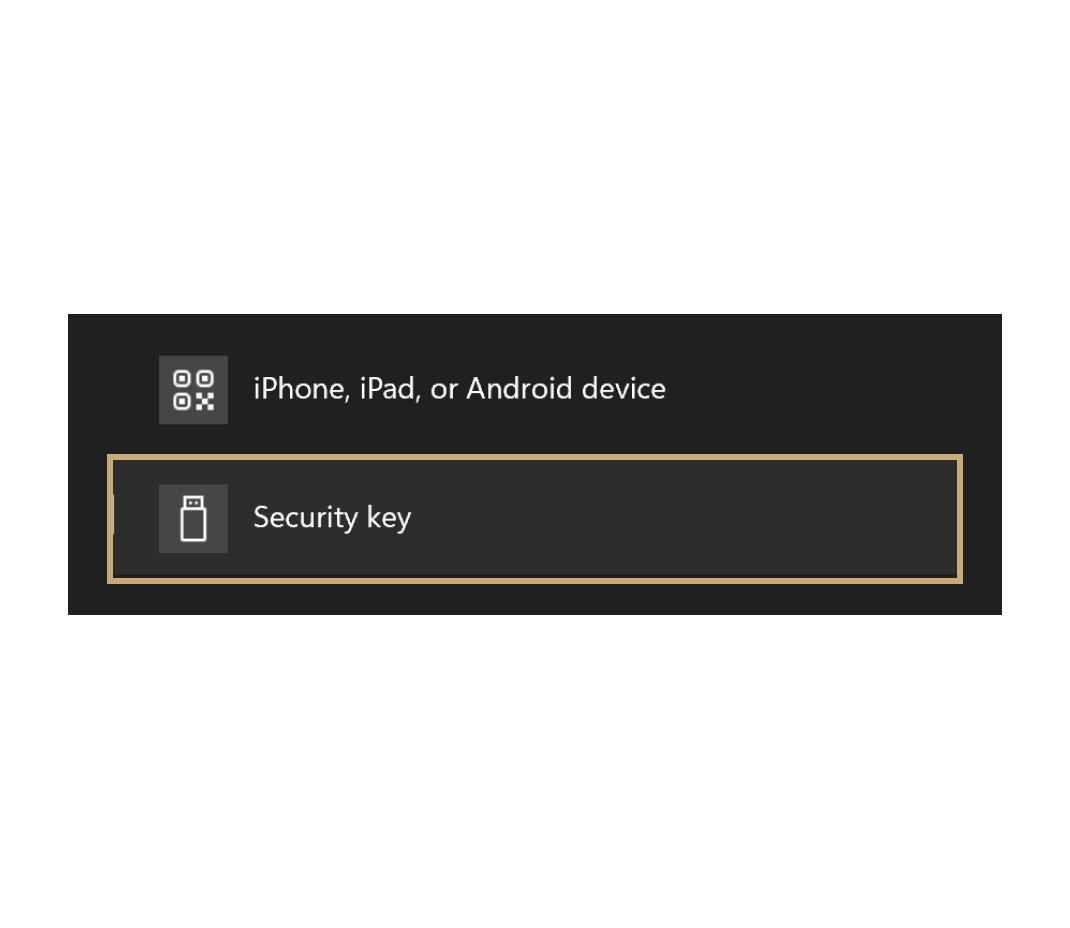
Add OFFPAD / OFFPAD+ as device
Click OK on the pop-ups
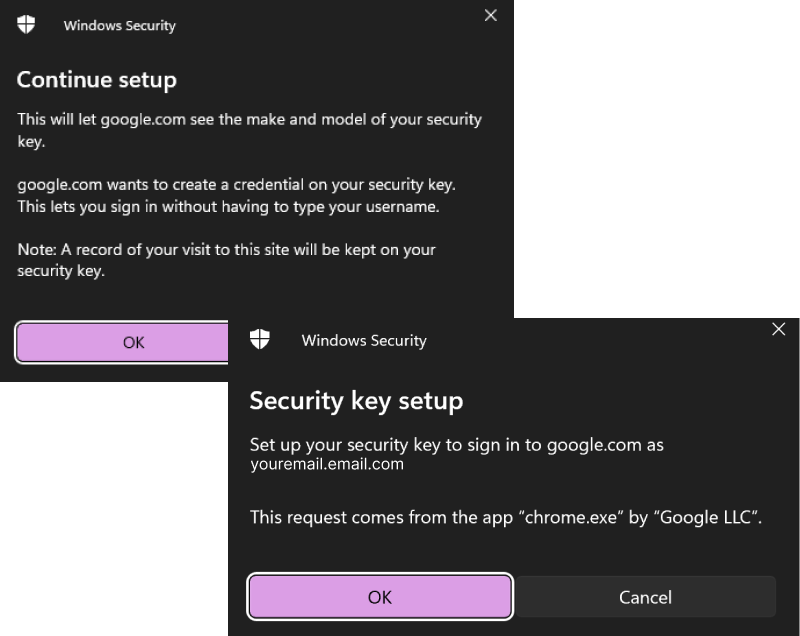
Authenticate with OFFPAD / OFFPAD+
Step 1
Turn on your OFFPAD or OFFPAD+
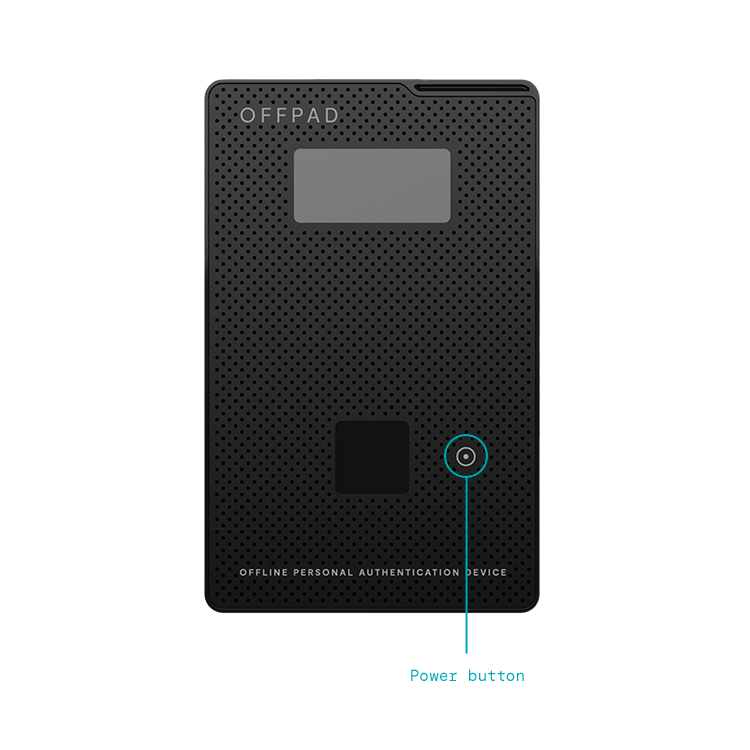
Authenticate with OFFPAD / OFFPAD+
STEP 1
Turn on your OFFPAD or OFFPAD+
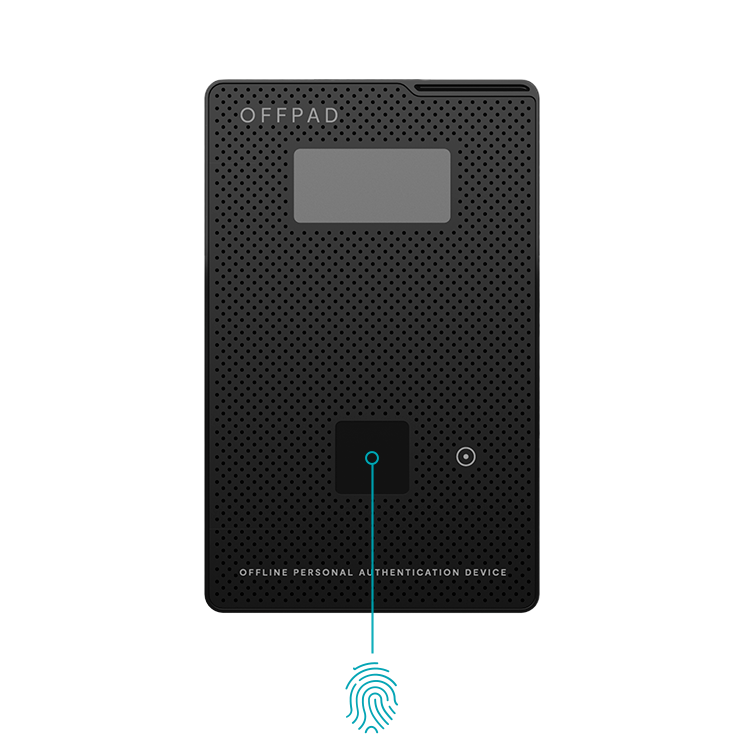
STEP 2
Use your fingerprint
What you need to connect your
Windows Hello account
FIDO2
FIDO2 needs to be set up in your Active Directory (AD). Your local IT administrator can complete this process by following the instructions provided here.
Intune
You need a machine fully enrolled in a domain with Intune, ask your local IT administrator if you are unsure about this.
Log in to Windows Hello
To add the OFFPAD or OFFPAD+ as a sign-in method, first log into your Windows Hello account.

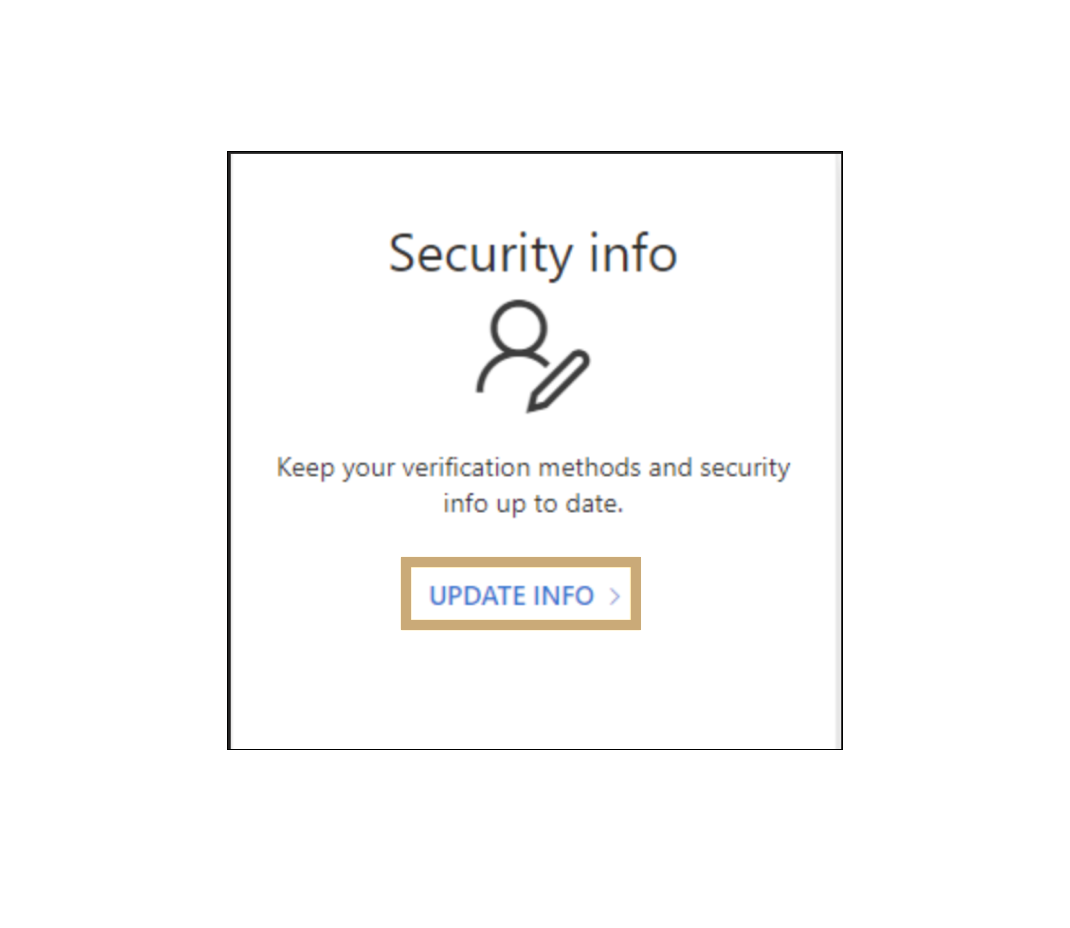
Update Security info
In your Windows Hello account page, go to “Security info” and click “UPDATE INFO” to add your OFFPAD or OFFPAD+ as a new sign-in option.
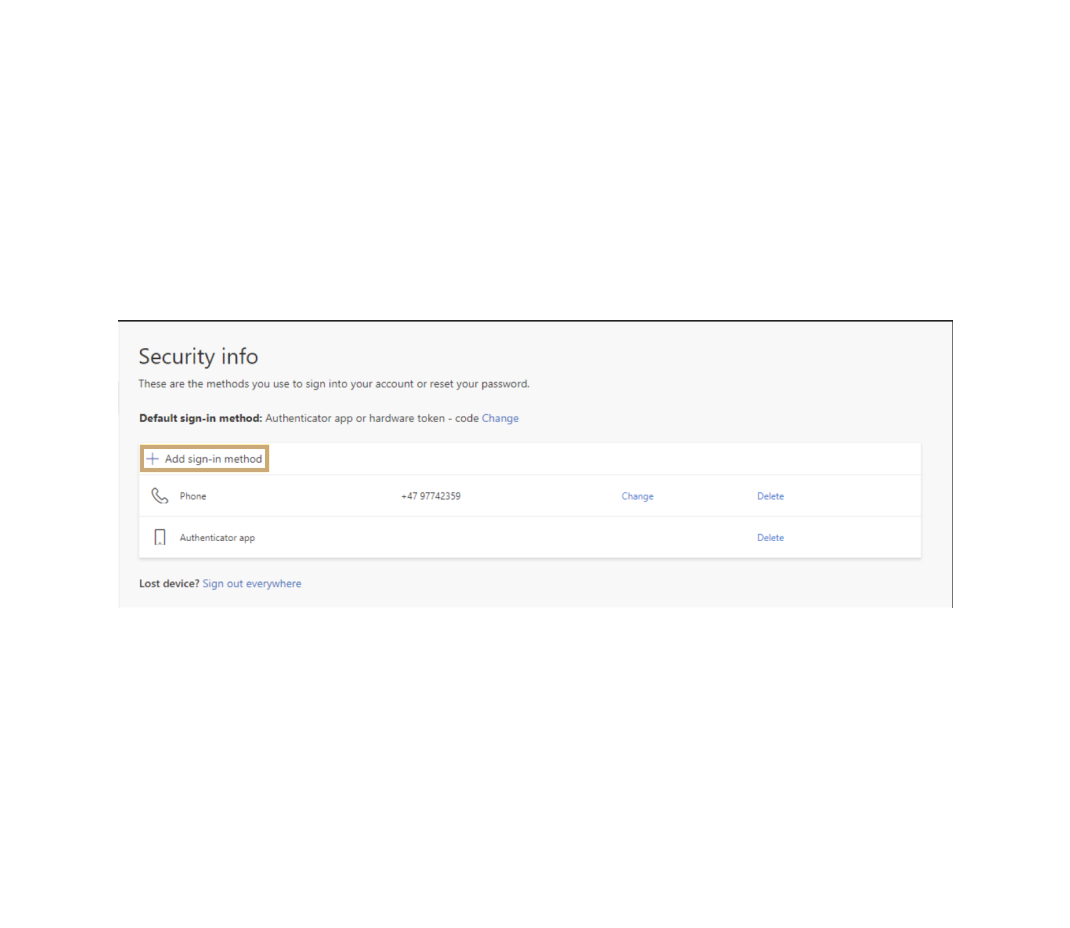
Add new sign-in methods
Click “Add sign-in method”.
Select the correct method
Click “Choose a method” in the drop-down menu and select “Security key”.

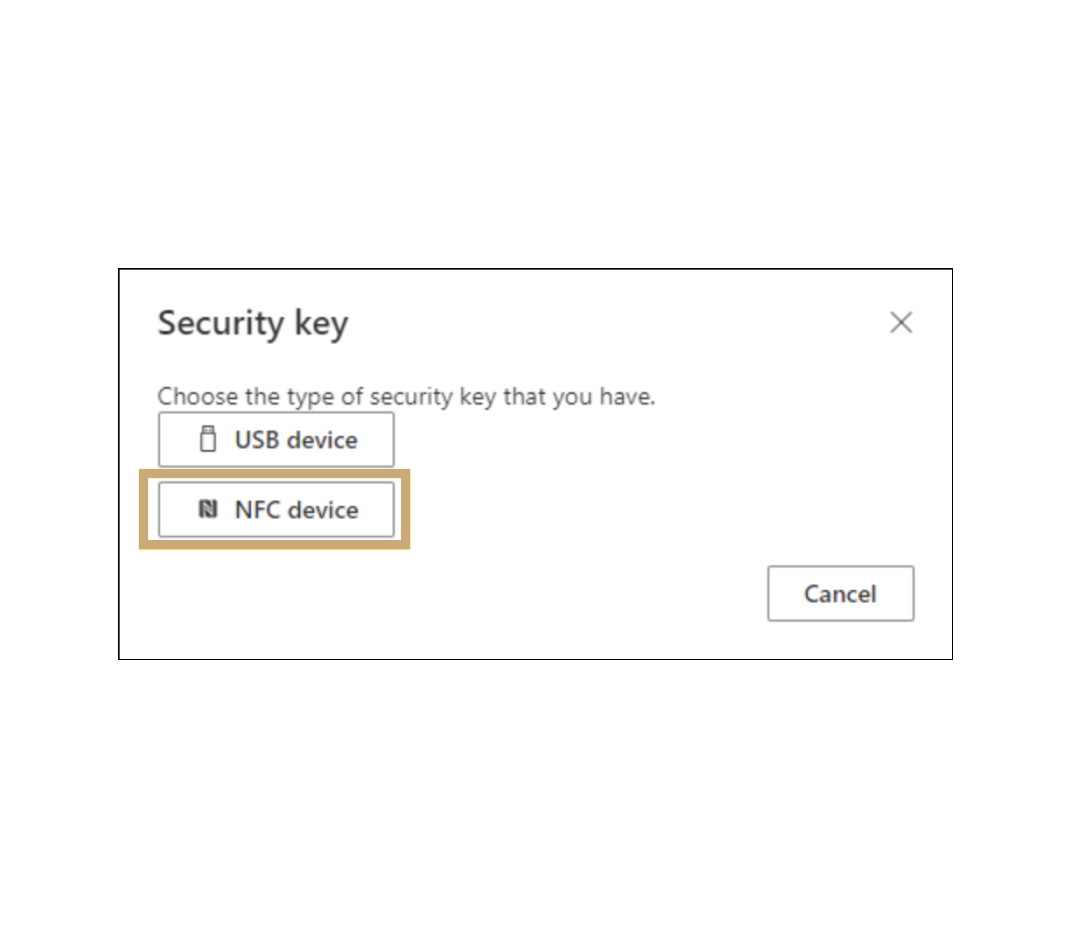
Select type of security key
Select “NFC device” from the list of Security key types.
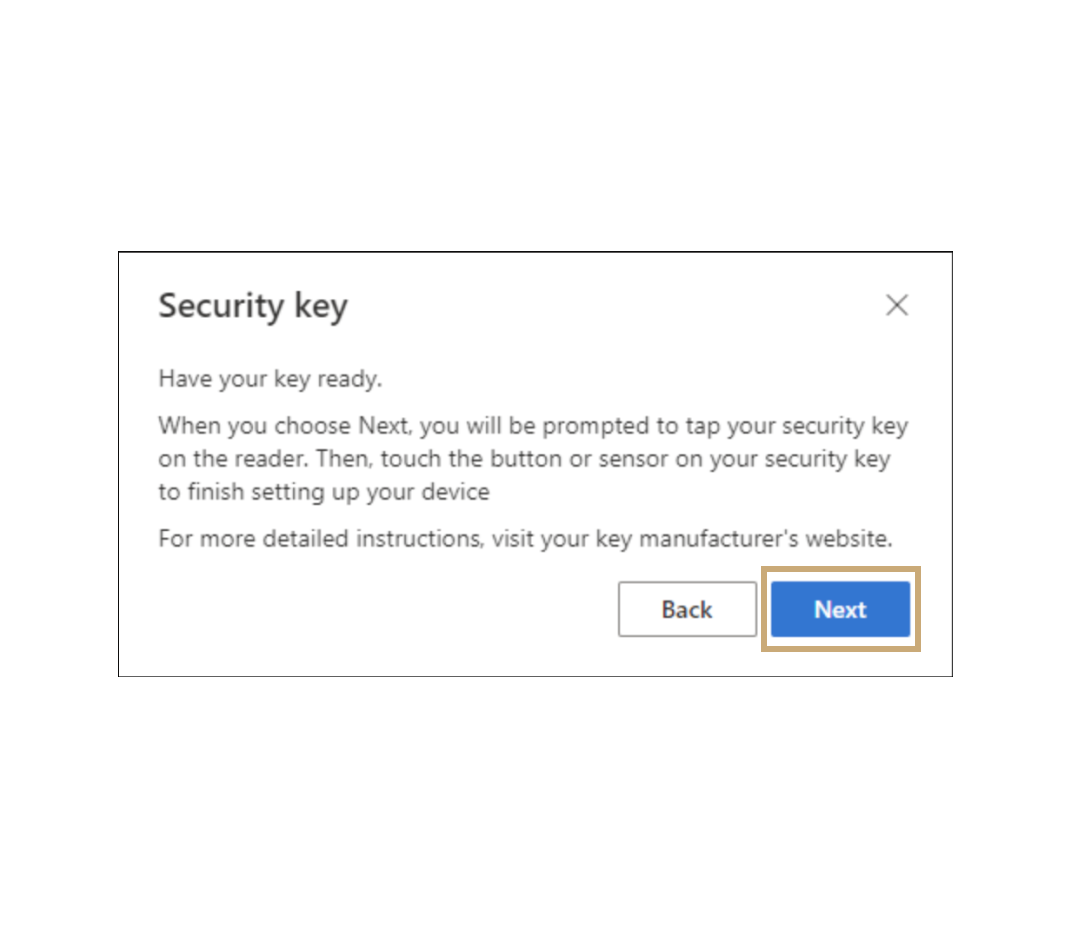
Turn on your OFFPAD / OFFPAD+
Click “Next” .
Create a passkey
Select “External security key or built-in sensor”.

Create a passkey
Click “OK” in the next two windows. You will then be prompted to authenticate using your OFFPAD or OFFPAD+.

Name your OFFPAD / OFFPAD+

Fido ALLIANCE
The OFFPAD is compatible with all FIDO2 services. To set it up as a security key for other services, use the specific company’s guide available through FIDO Alliance’s website.