Getting
Started
In your hand, you hold the key to cyber security. A gateway to safer online communications and data exchange, an elegant solution born from a disruptive approach.
*Note! OFFPAD is not compatible with Mac OS or Android
Prepare your OFFPAD
Charging
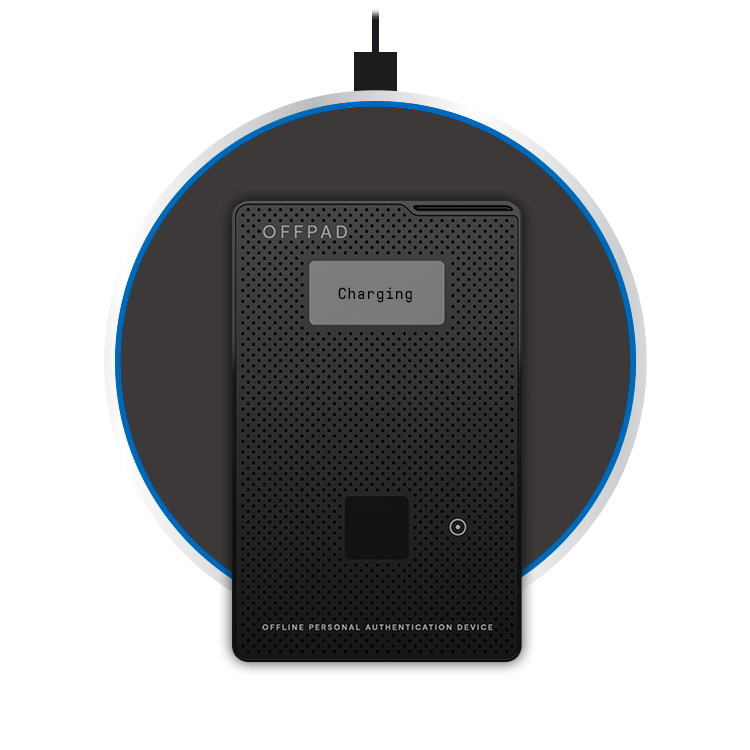
Charge the OFFPAD by placing it as shown in the illustration. The message “Charging” should appear on the OFFPAD.
Prepare your OFFPAD
Charging
Charge the OFFPAD by placing it as shown in the illustration. The message “Charging” should appear on the OFFPAD.
Power On
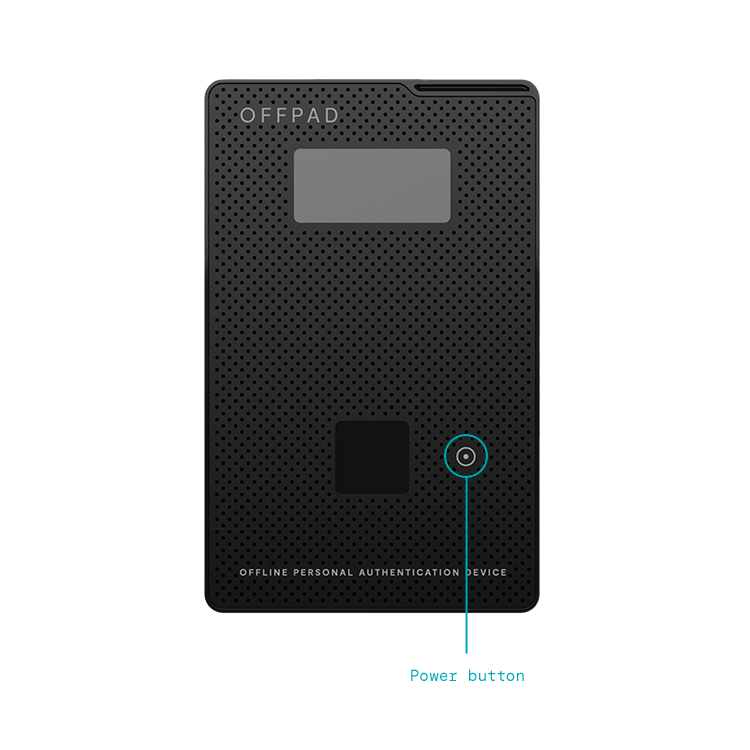
Turn on your OFFPAD by pressing the power button.
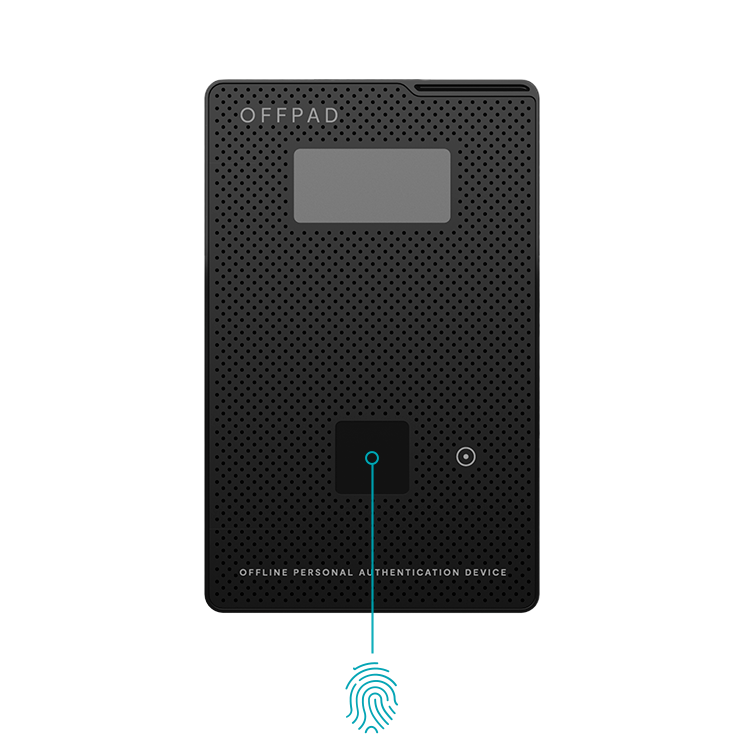
Add the first fingerprint
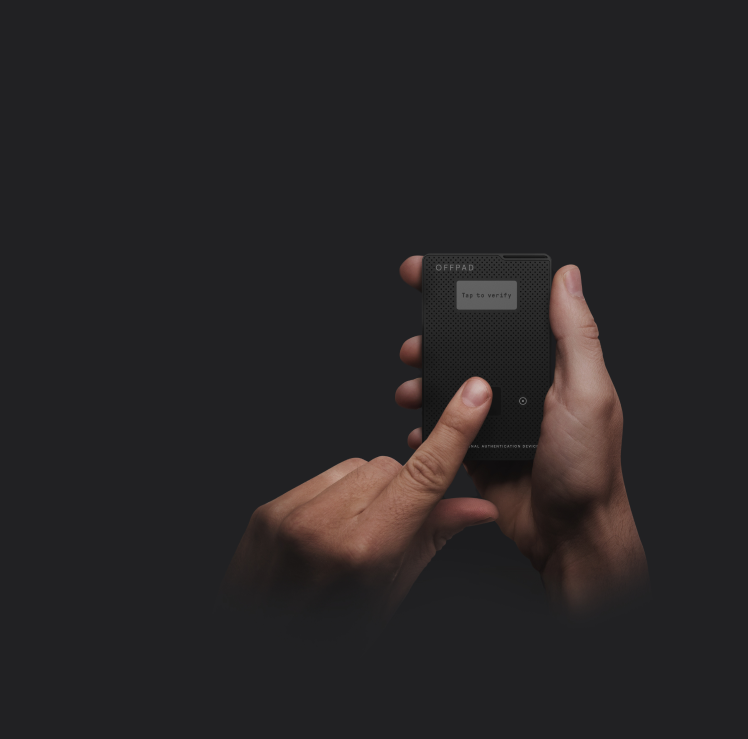
The OFFPAD will prompt you to add the first fingerprint. Follow the instructions on the screen. When the process is complete the OFFPAD will automatically shutdown.
*Note! You can add more fingerprints in the Device Manager after installation.
Download Device Manager
Add advanced Bluetooth
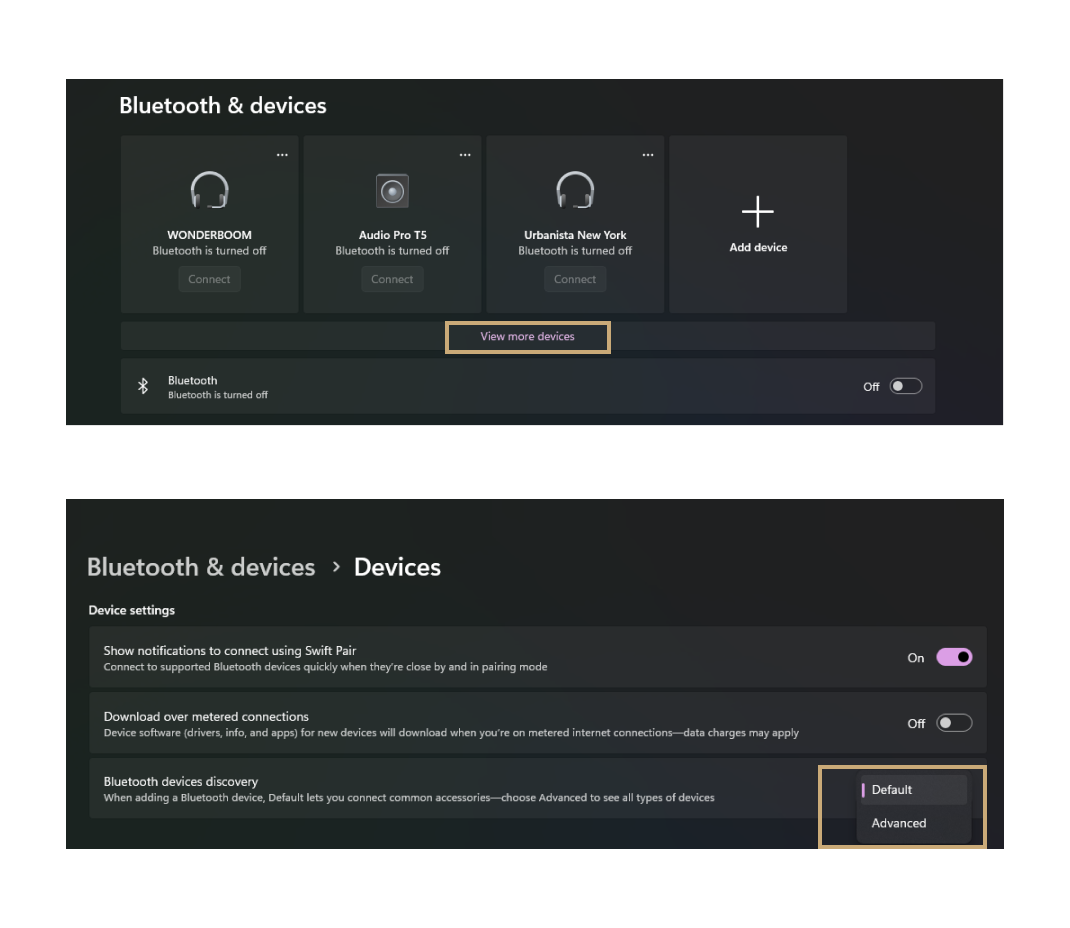
Open Bluetooth settings on your windows computer and click view more devices.
Under device settings change the Bluetooth device discovery setting to “Advanced”.
*Note! This does not apply to Windows 10. If you are using Windows 10 you can skip this step.
Bluetooth Connection
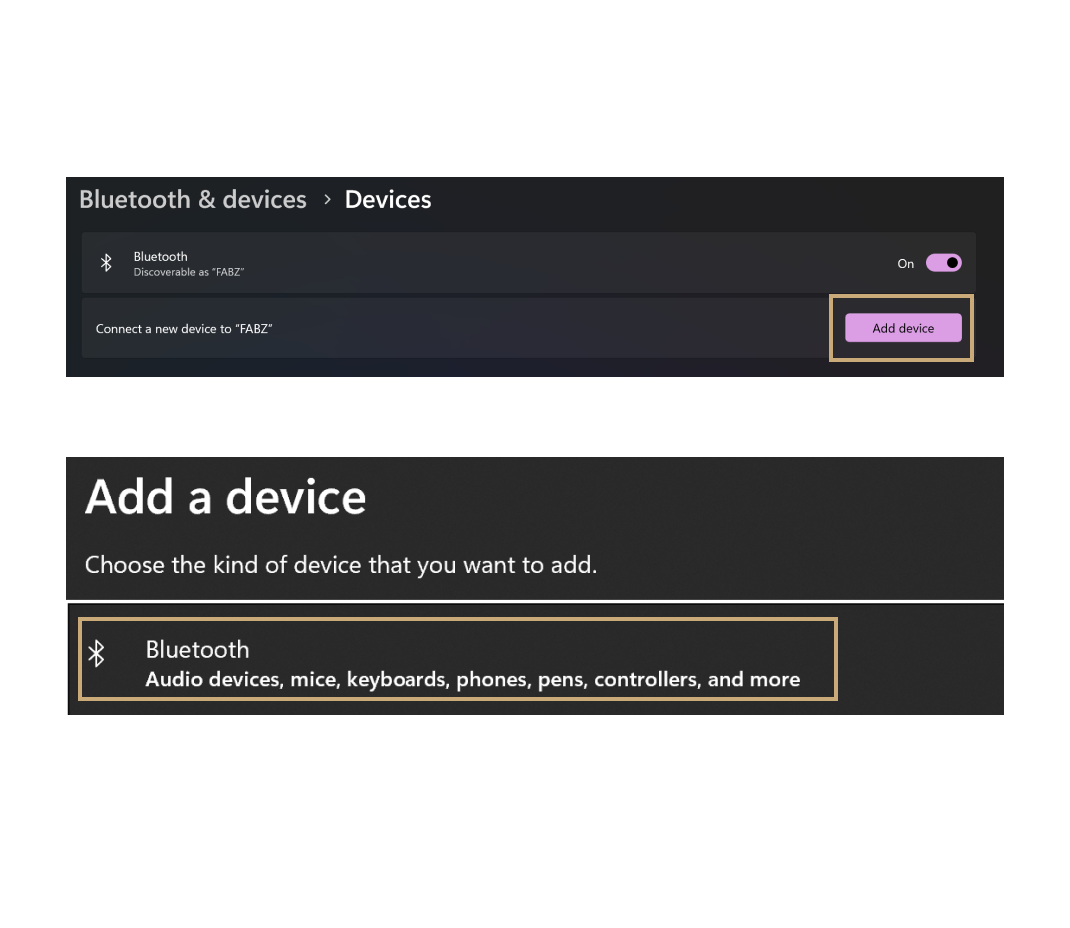
Open Bluetooth settings on your windows computer, click “Add device” and then “Bluetooth”.
Bluetooth Connection
- Turn on the OFFPAD
- Press and hold the ON button until “Pairing Mode” appears
- Choose the OFFPAD from the list of devices on your computer
Bluetooth CONNECTION
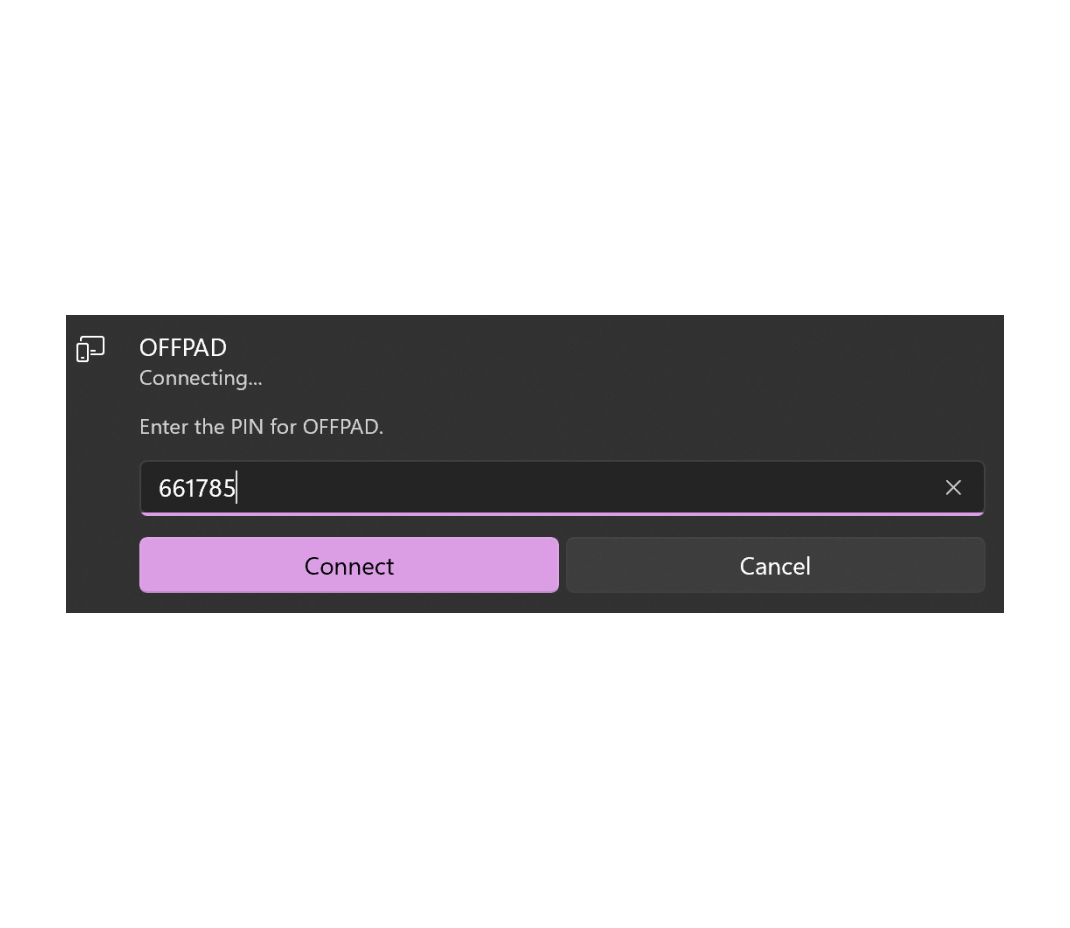
A PIN will show up on your OFFPAD.
Enter the PIN on your computer.