Set a pin
When you’ve connected your OFFPAD+ you need to set a PIN. Choose method based on your device.


Set PIN
Before you start, make sure you are using Google Chrome or another chromium based browser.

Set PIN
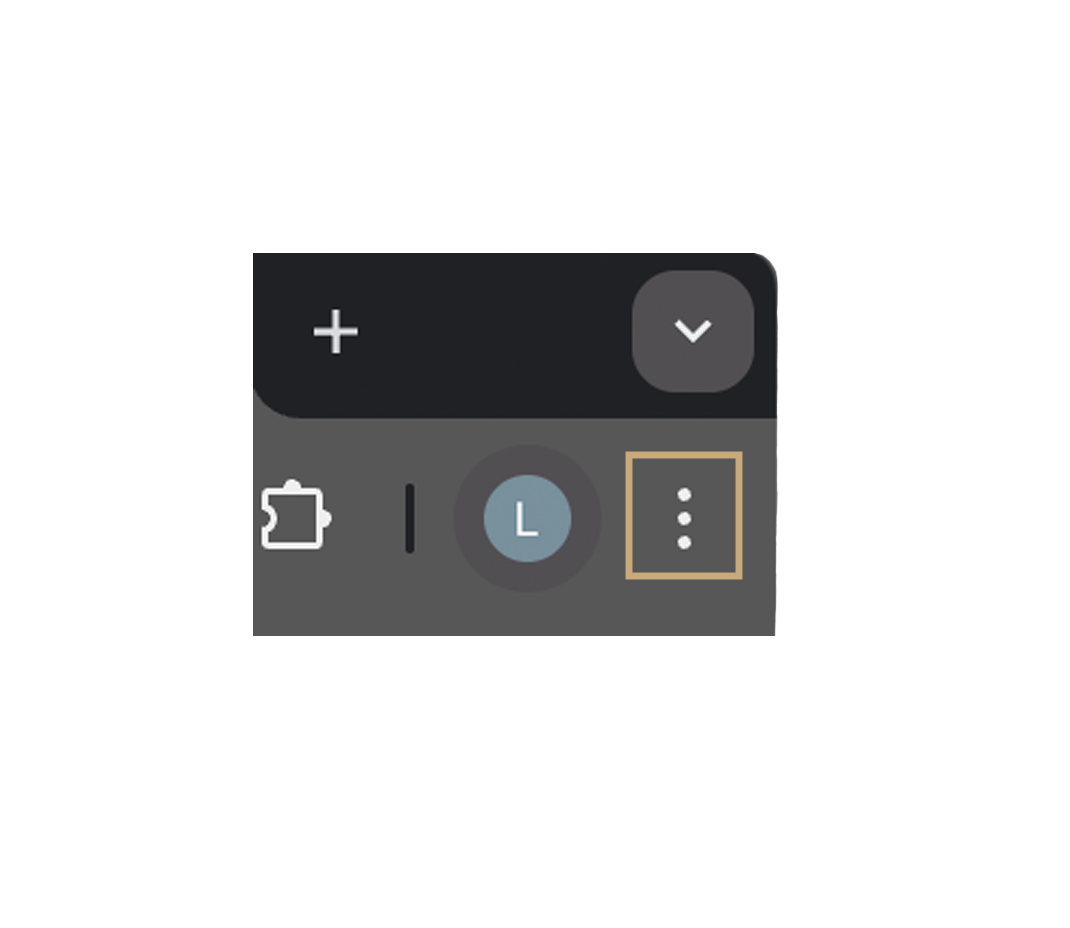
Enter settings by clicking the three vertical dots in the upper right corner of the browser
Set PIN
Enter settings by clicking the three vertical dots in the upper right corner of the browser
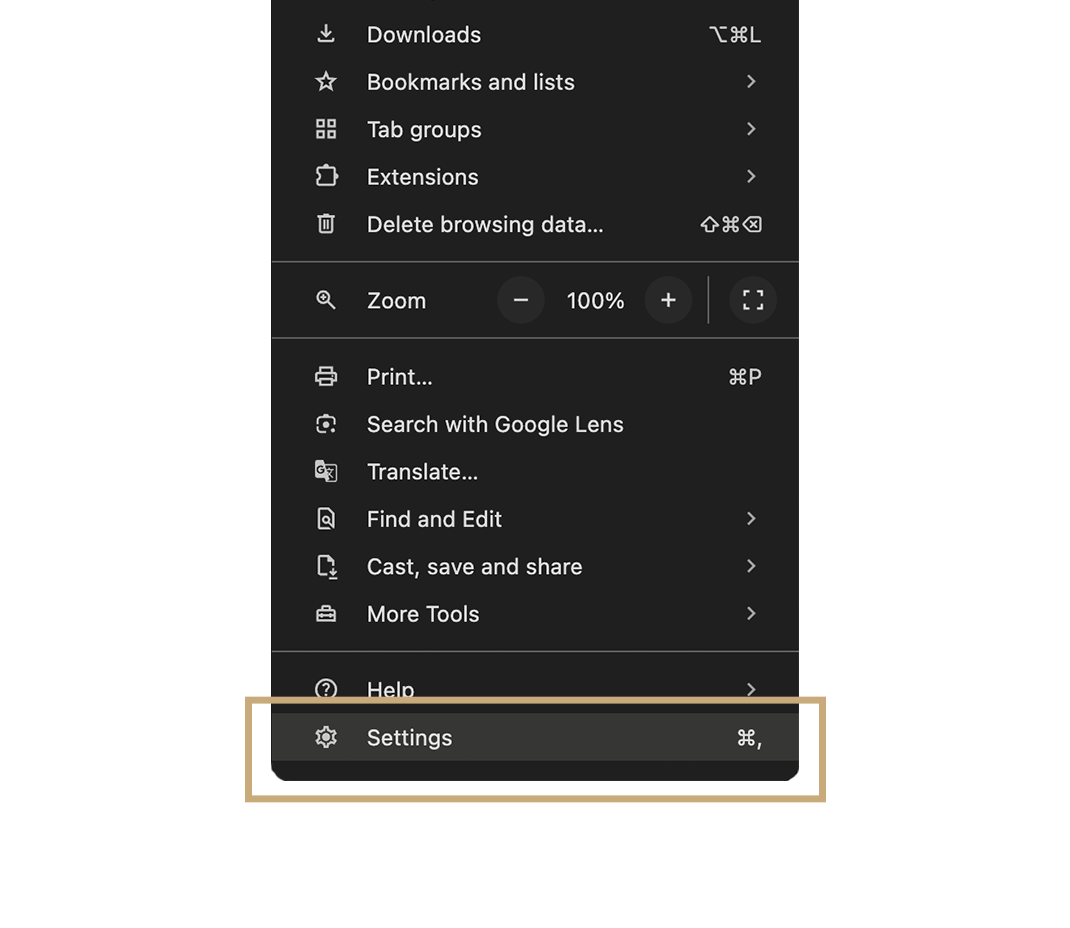
Click on the cogwheel icon marked “settings”
Set PIN
Enter settings by clicking the three vertical dots in the upper right corner of the browser
Click on the cogwheel icon marked “settings”
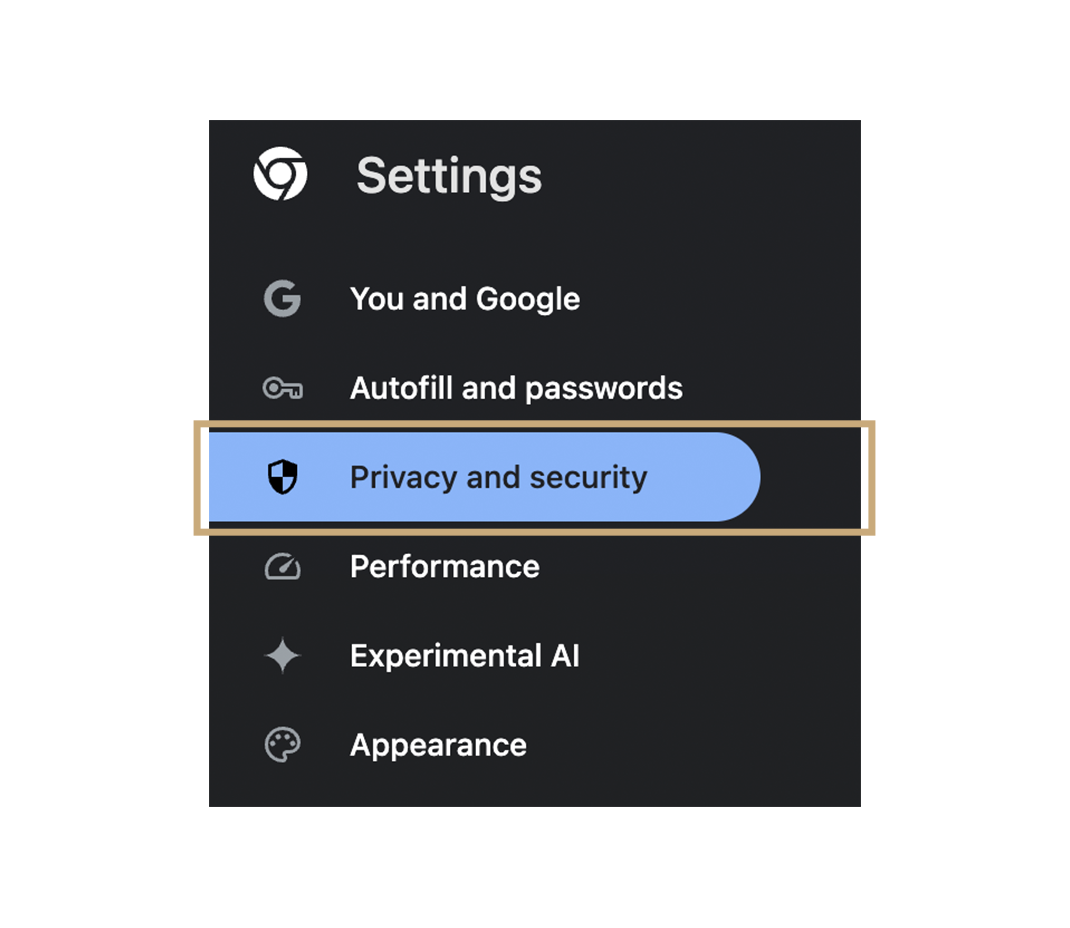
Go to the privacy and security tab in the menu to the left
Set PIN
Enter settings by clicking the three vertical dots in the upper right corner of the browser
Click on the cogwheel icon marked “settings”
Go to the privacy and security tab in the menu to the left
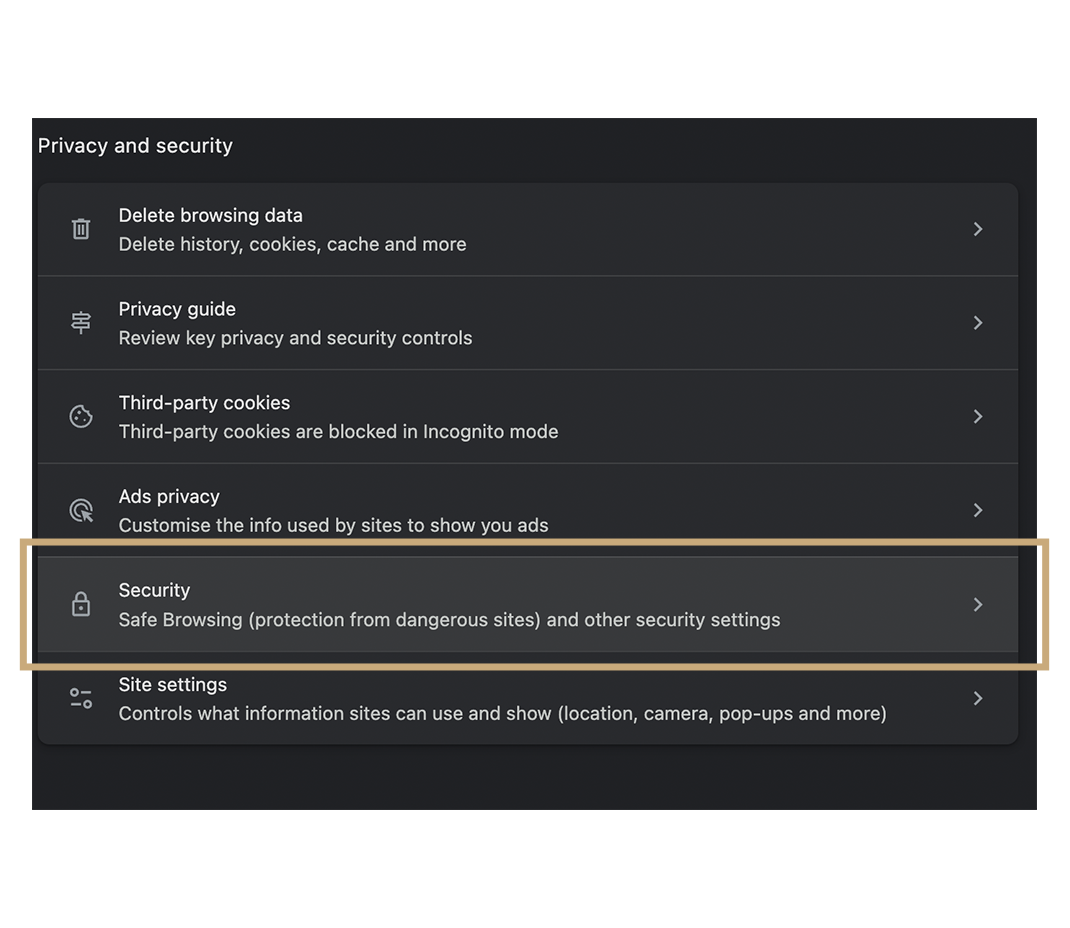
Click security
Set PIN
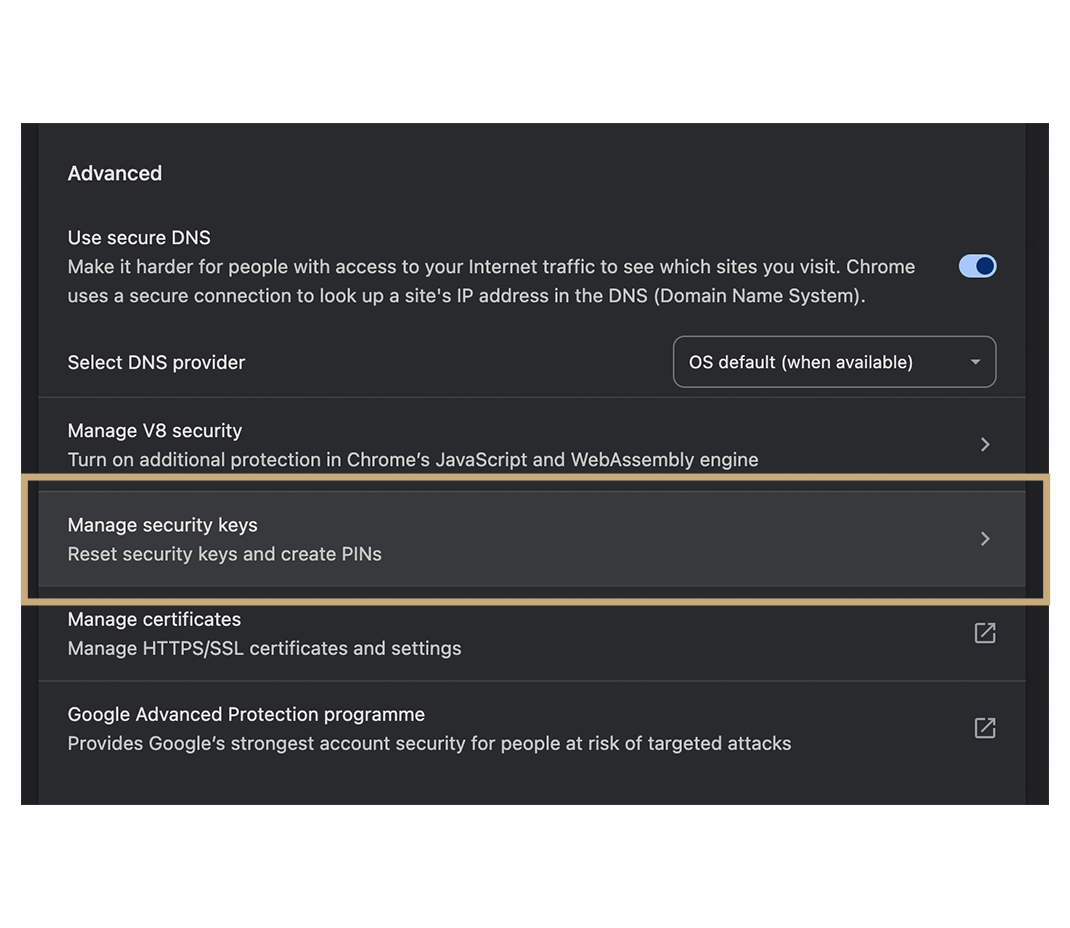
Click “Manage security keys”
Set PIN
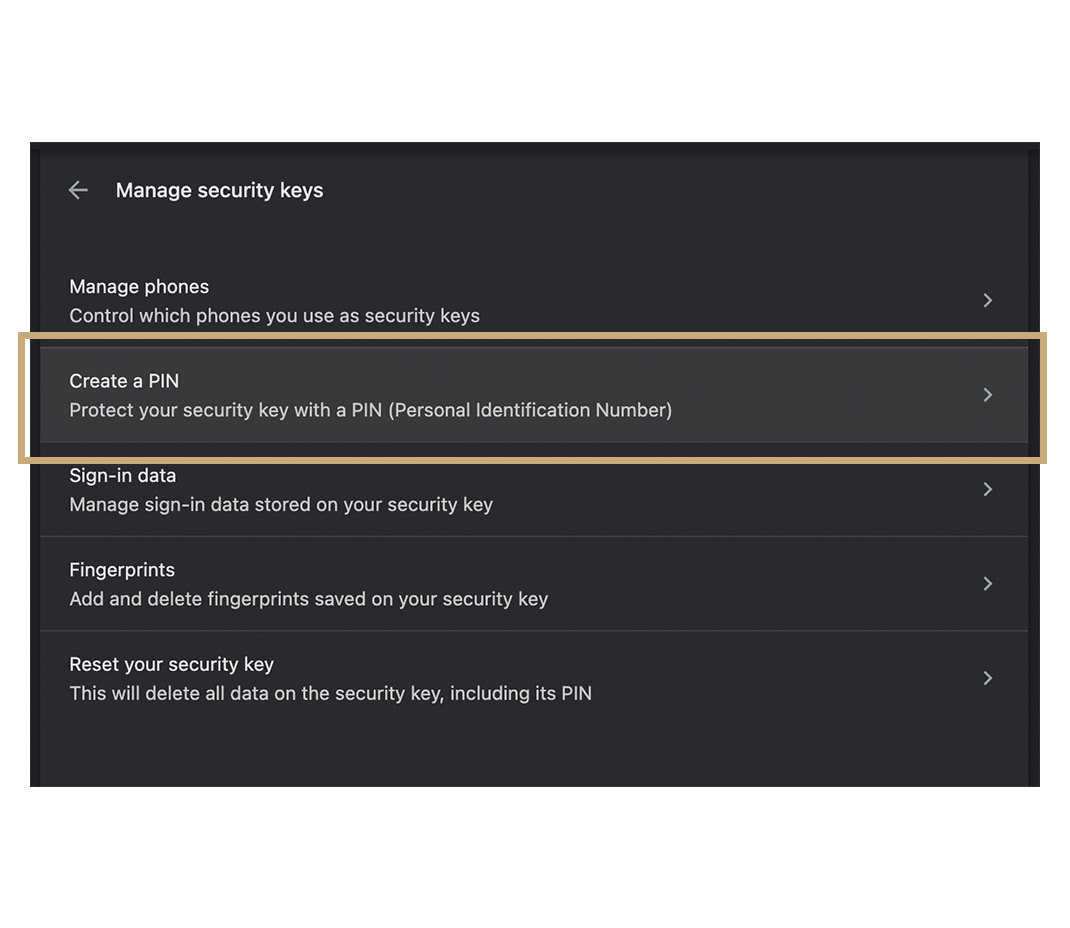
Click on “Create a PIN” and follow the instructions.
Set fingerprint (optional)
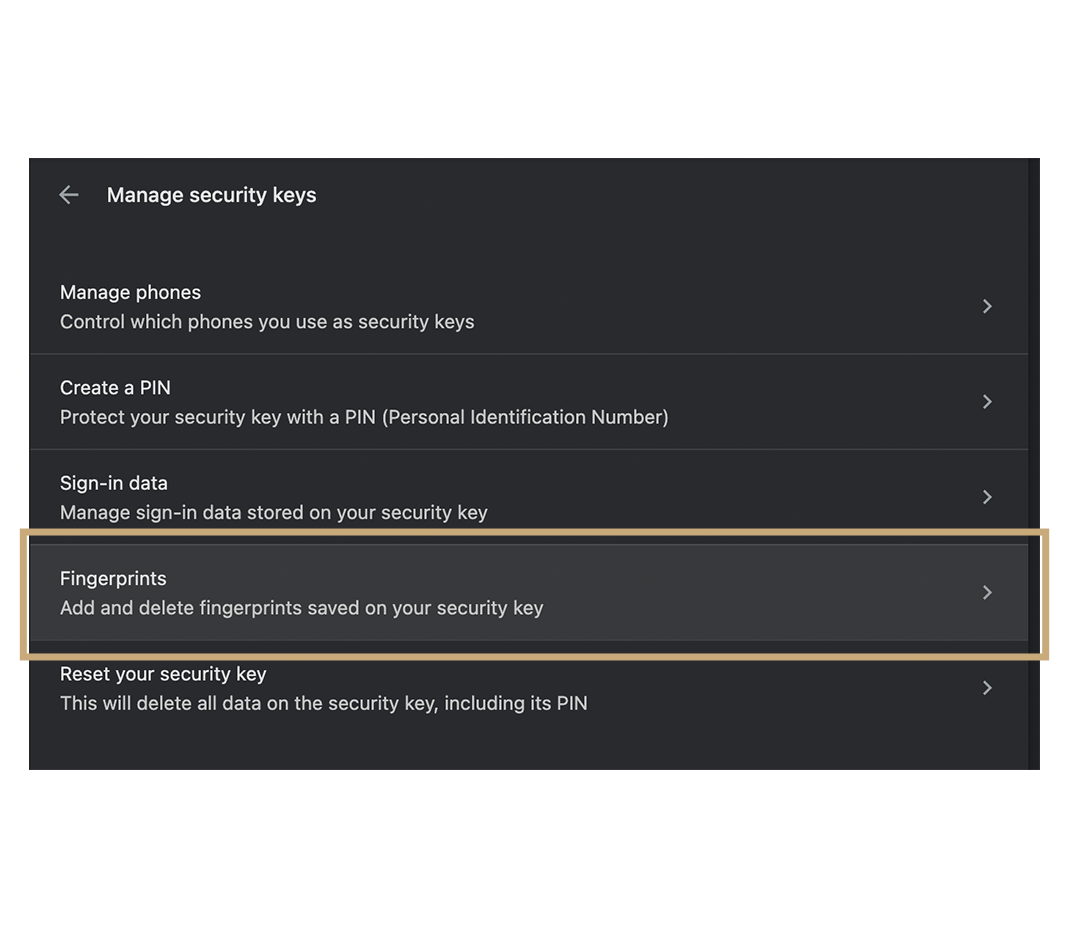
Click on “set fingerprint” and follow the instructions
*Note! If you'll receive a message saying "Your security key couldn't be read" it means you waited longer than 30 seconds from the last time you authorized and you'll need to do it again.
Set PIN
1. Connect OFFPAD+ to the computer using either bluetooth or USB
2. Open Windows Settings
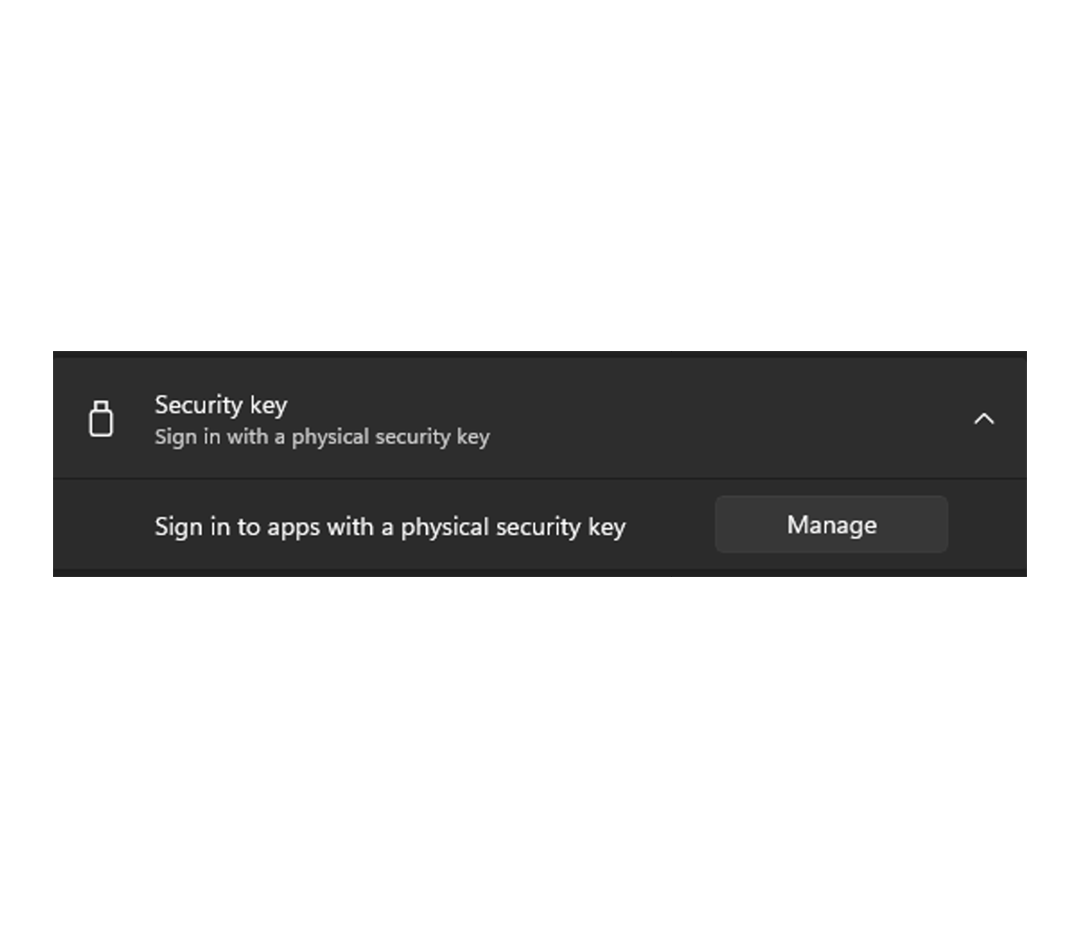
3. Navigate to Accounts > Sign-in options > Security Key > Click “Manage”
Set PIN
Add PIN by clicking “Add” under “Security Key PIN”

Set fingerprint (optional)
Add fingerprint by clicking “Set up” under “Security Key Fingerprint”
